Explore data on ScarfWeb
Custom Cell SelectionsGuide to Adjusting and Filtering Cells in ScarfWeb
1\. Navigate to https://scarfweb.nygen.io/eu-north-1/projects/9p9wkcqr
2\. Click "View"
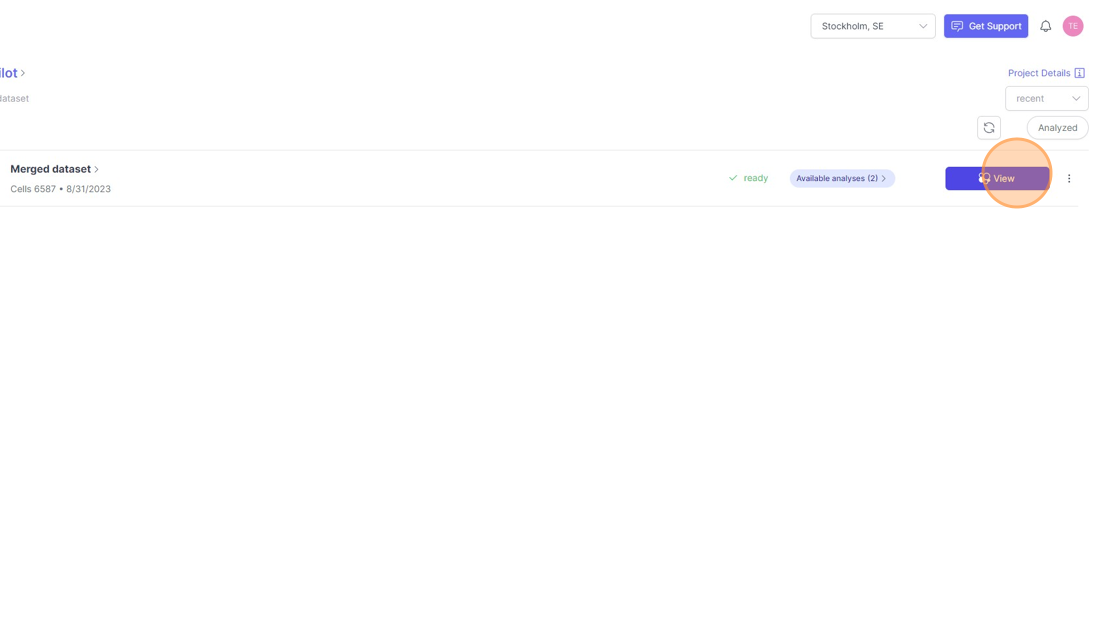
3\. Click here.
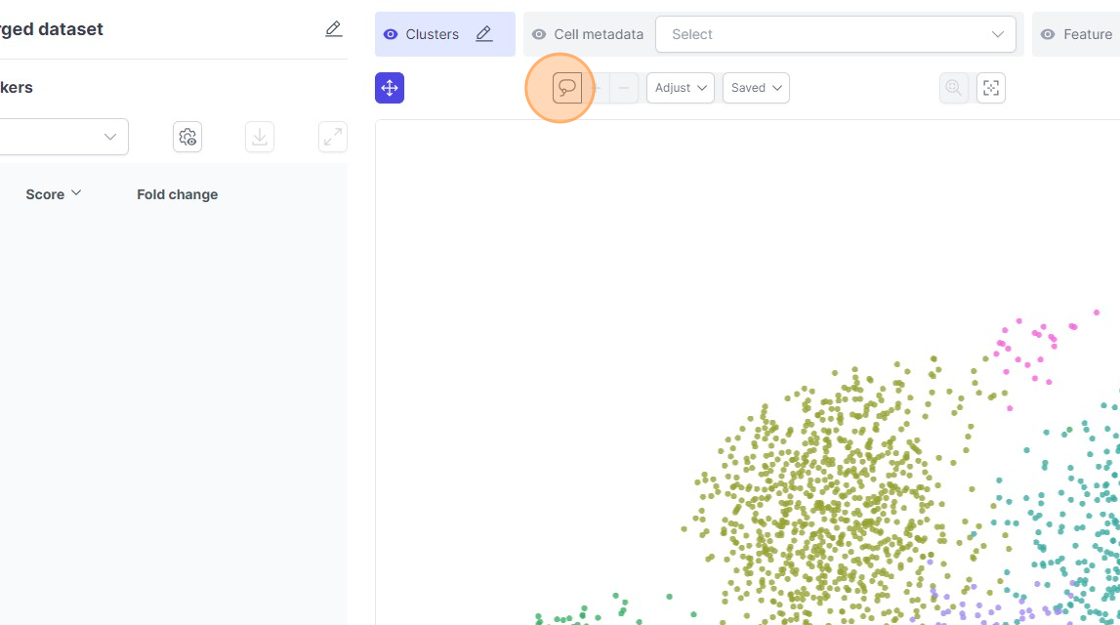
4\. Click here.
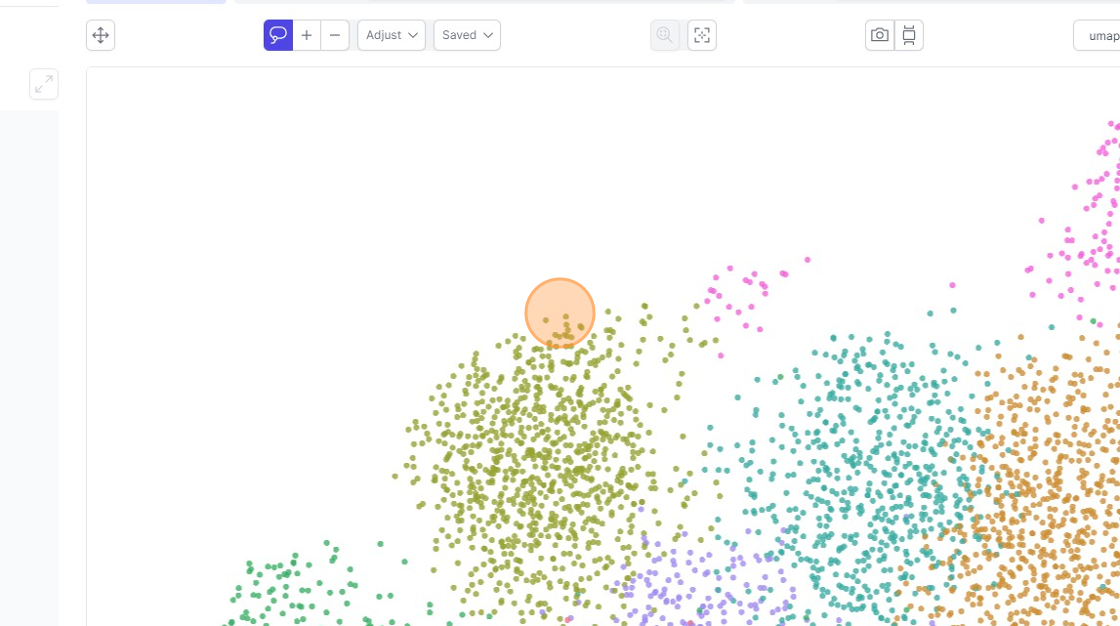
5\. Click this icon.
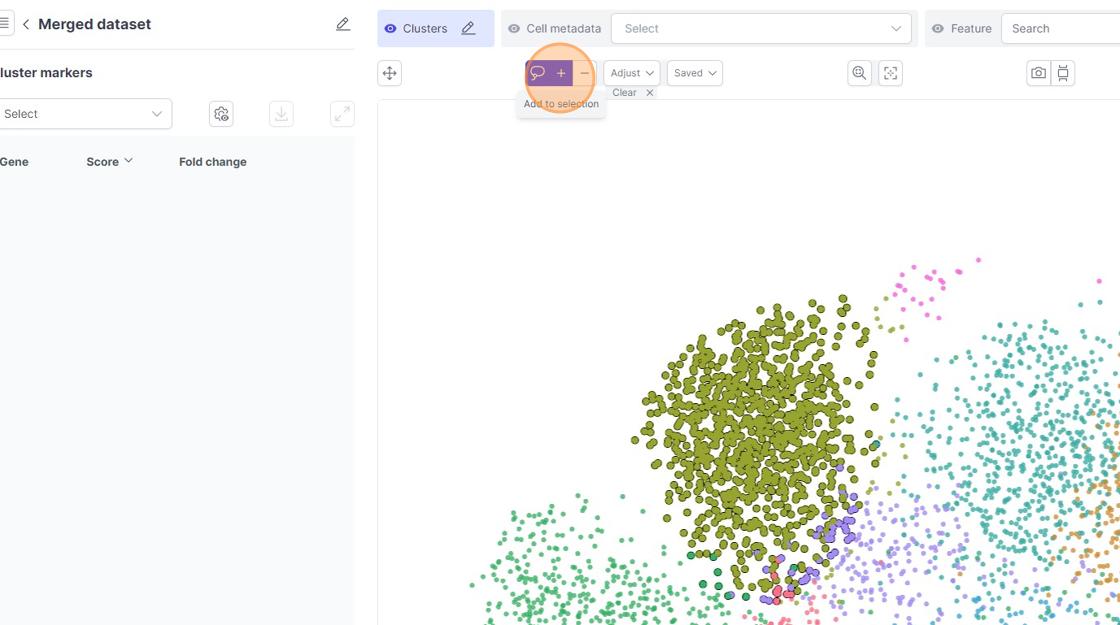
6\. Click here.
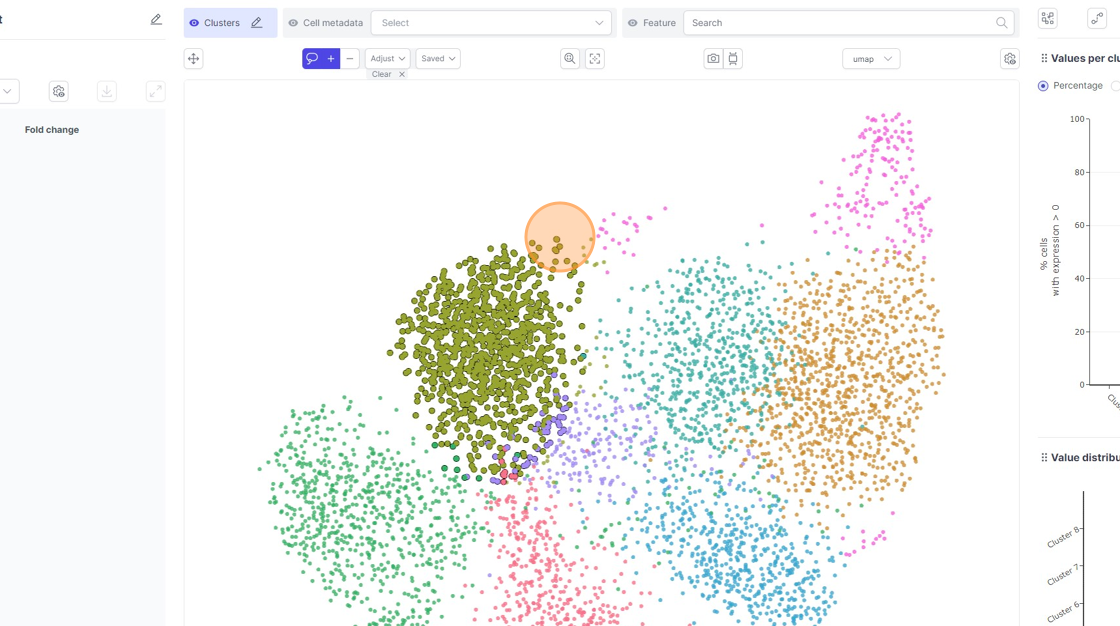
7\. Click this icon.
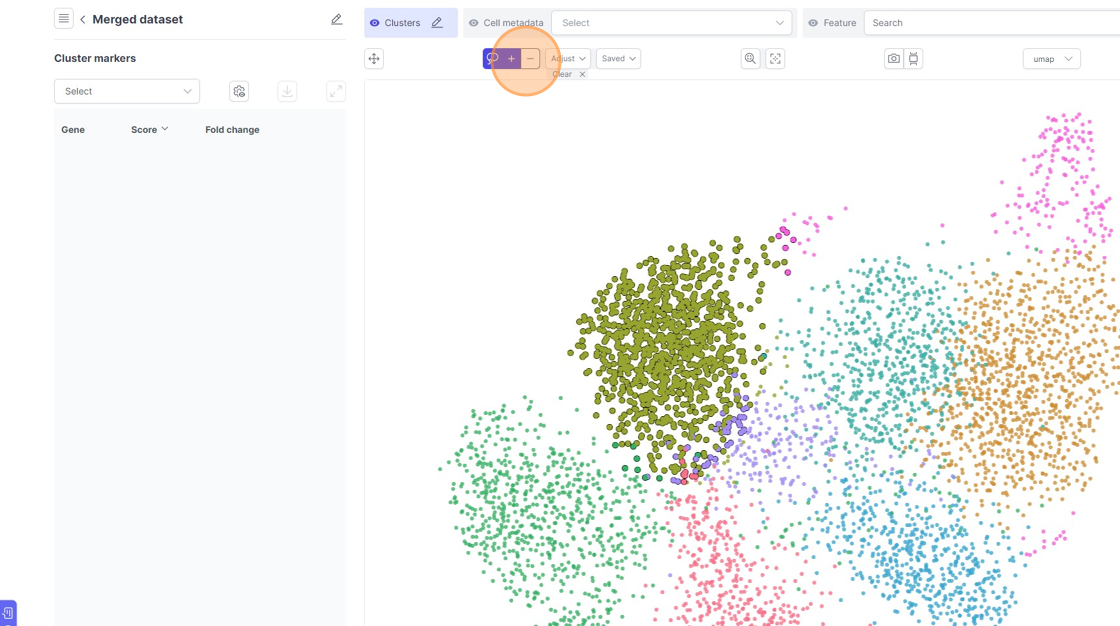
8\. Click here.
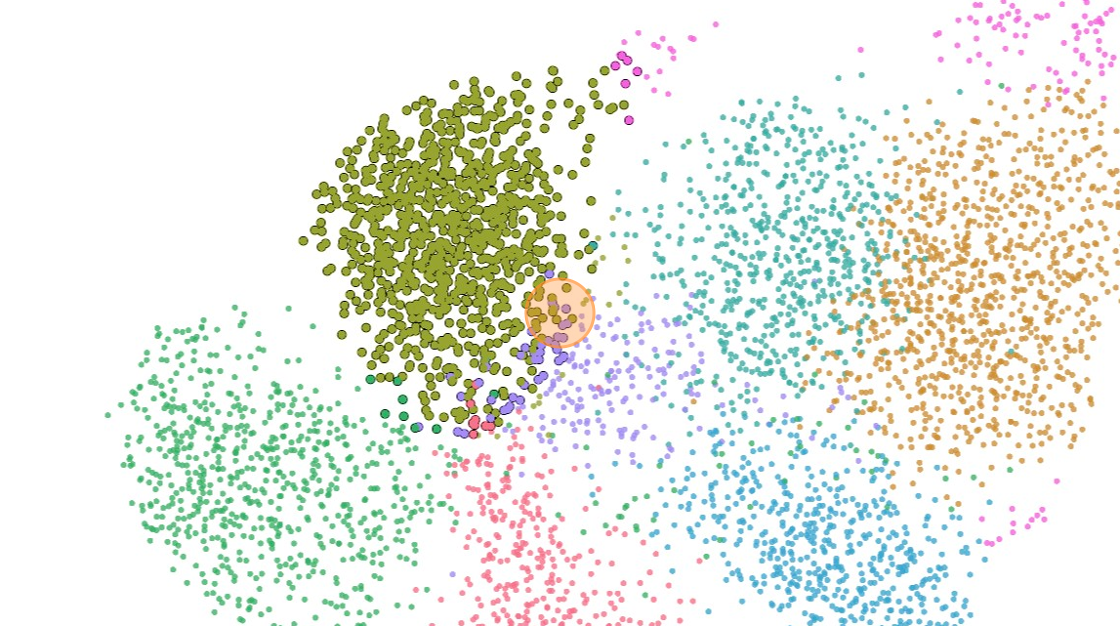
9\. Click "Adjust"
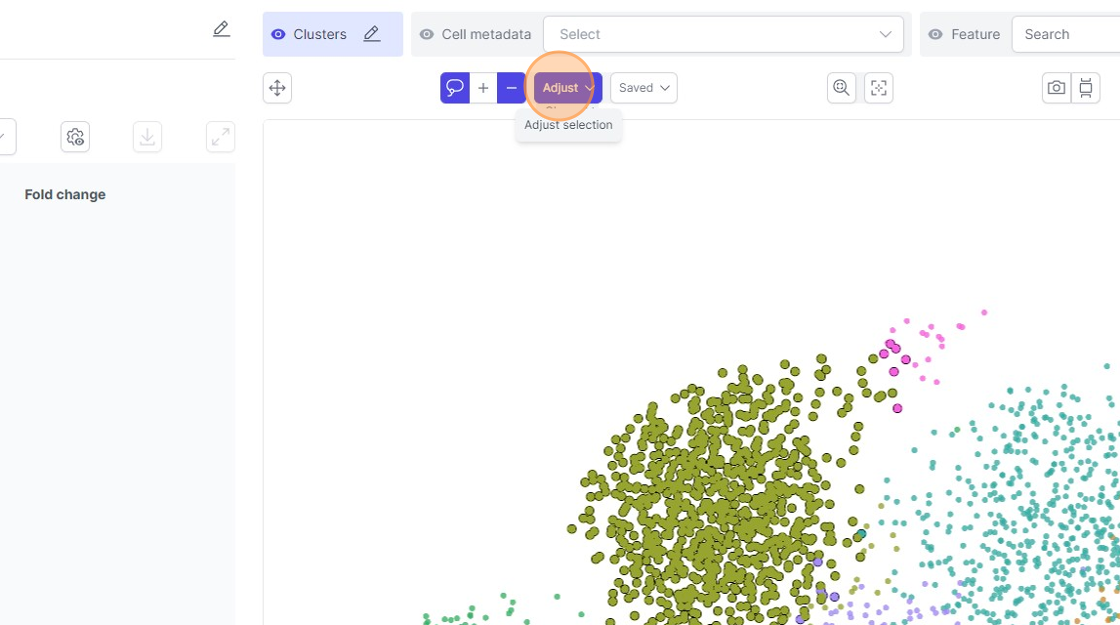
10\. Click the "Cluster 78 cells (current selection)Include all210 cells" field.
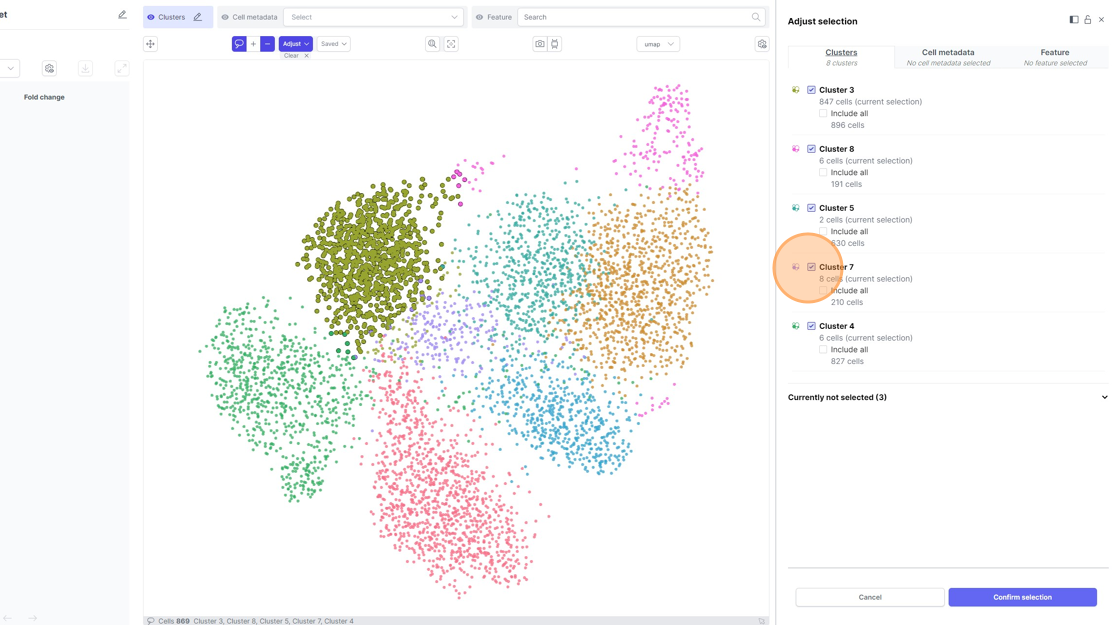
11\. Click the "Cluster 46 cells (current selection)Include all827 cells" field.
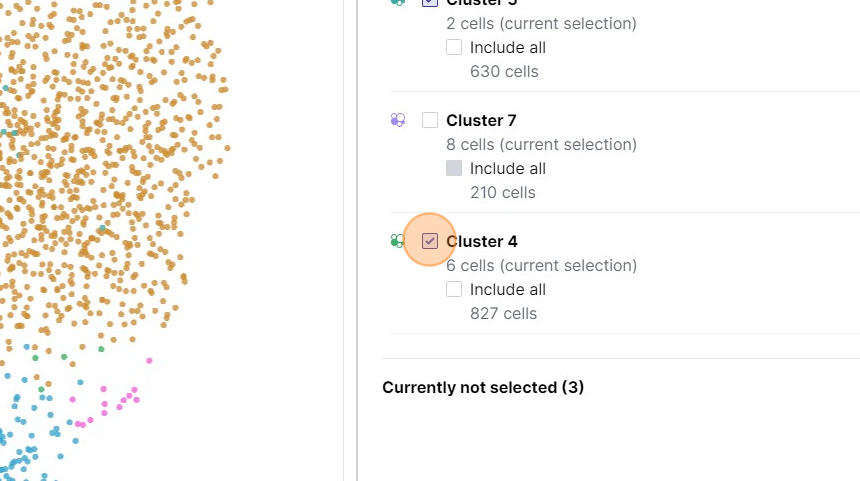
12\. Click the "Cluster 52 cells (current selection)Include all630 cells" field.
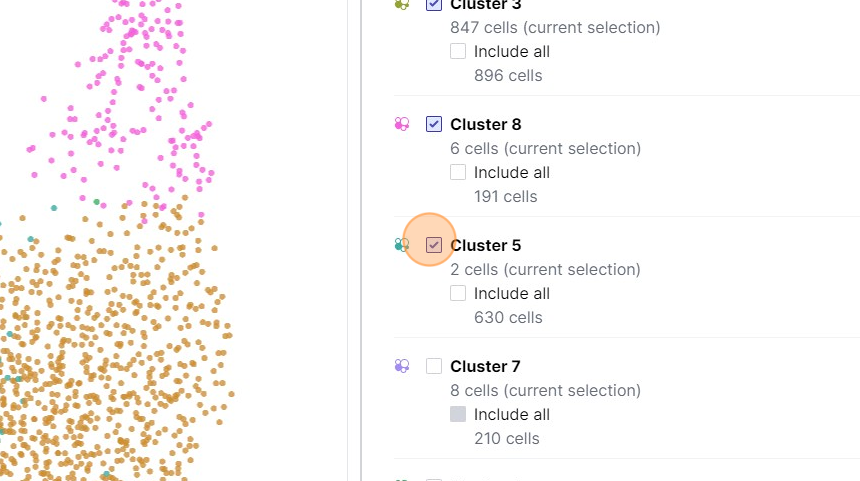
13\. Click the "Cluster 86 cells (current selection)Include all191 cells" field.
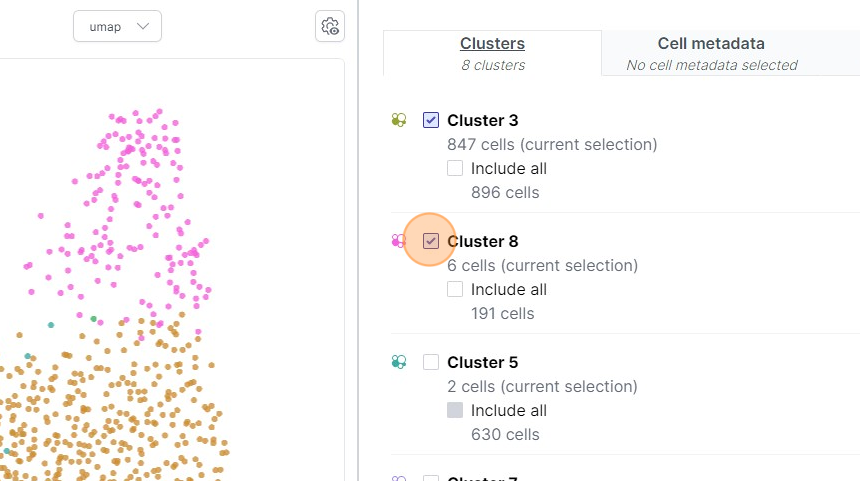
14\. Click the "Include all896 cells" field.
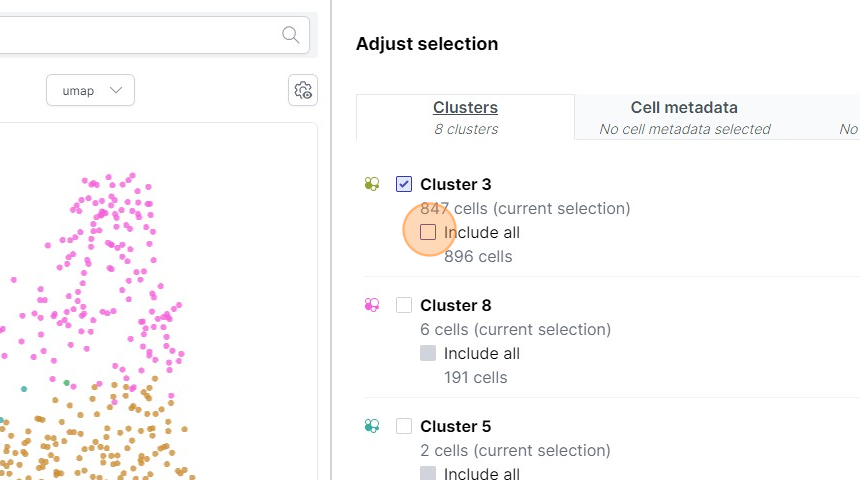
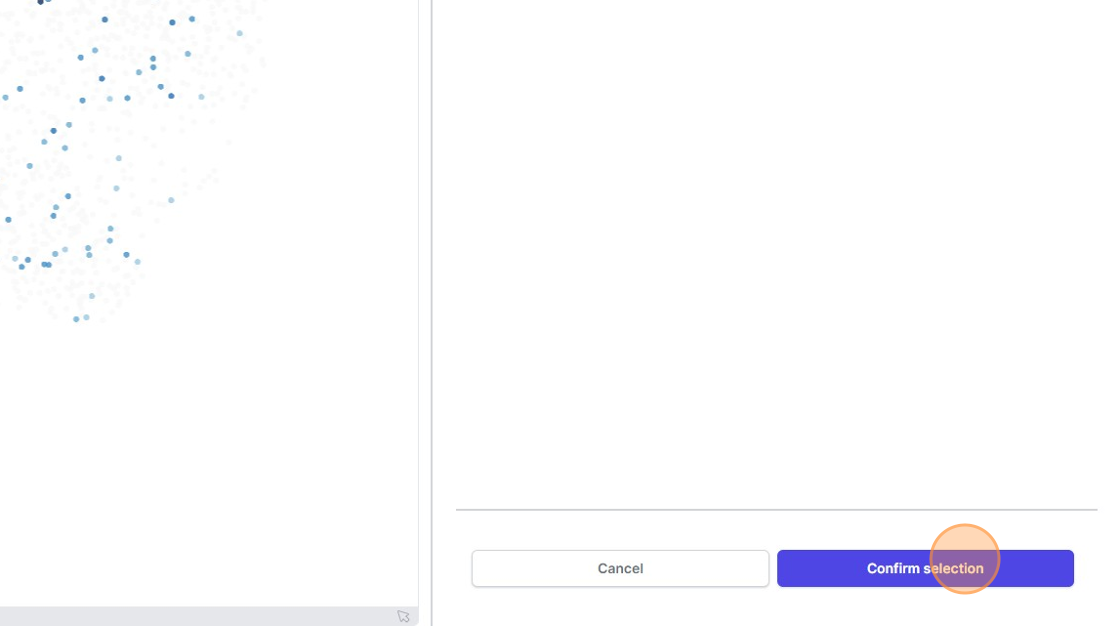
15\. Click "Confirm selection"
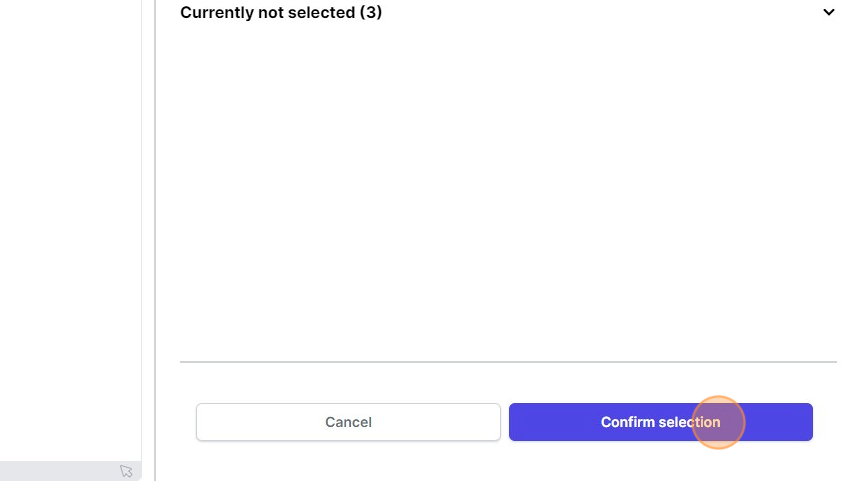
16\. Click this icon.
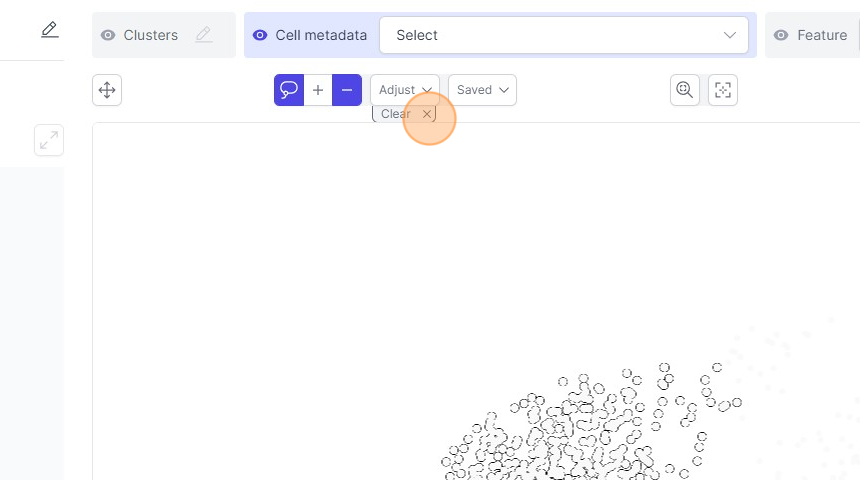
17\. Click "Select"
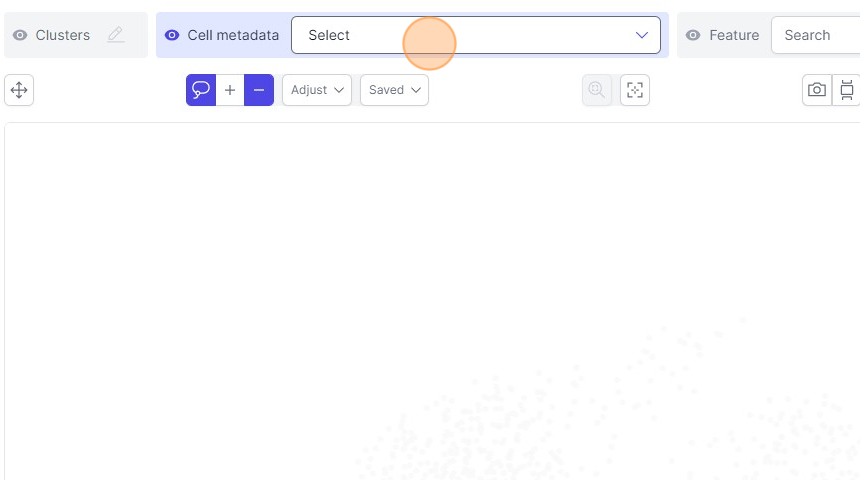
18\. Click "G2M phase score"
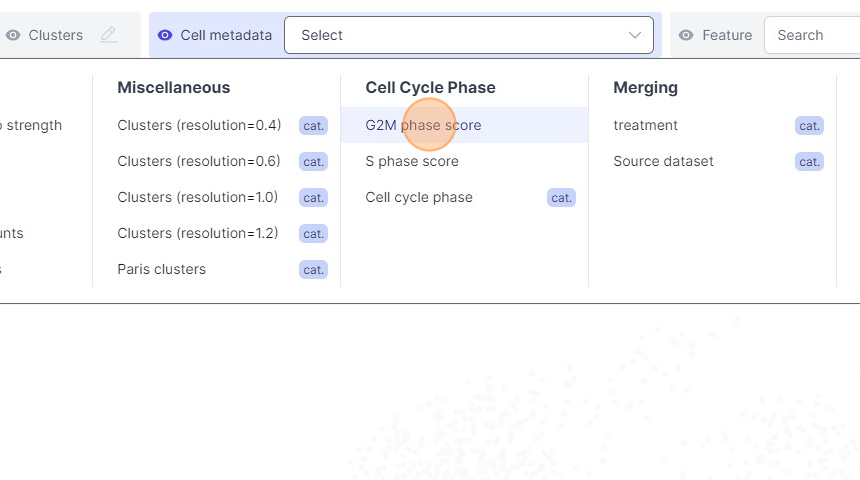
19\. Click here.
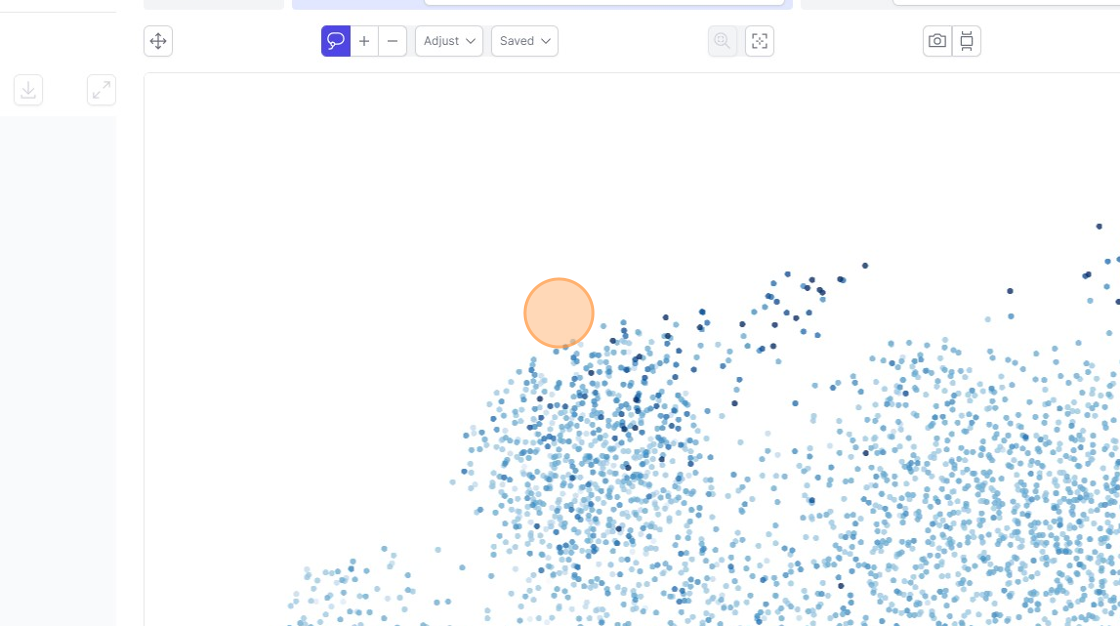
20\. Click "Adjust"
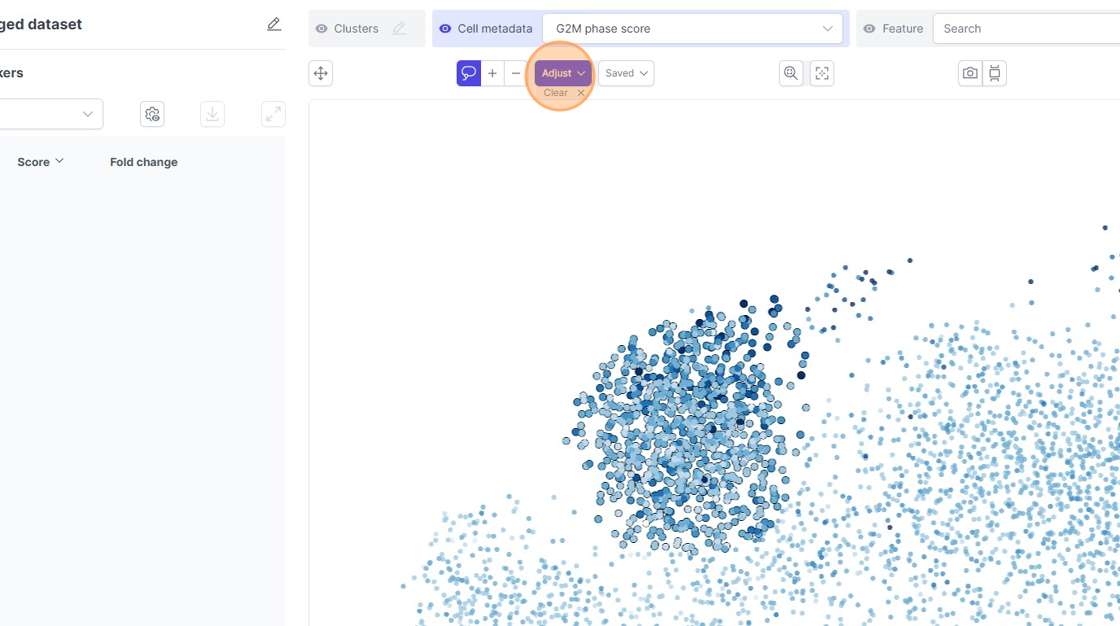
21\. Click "Cell metadata"
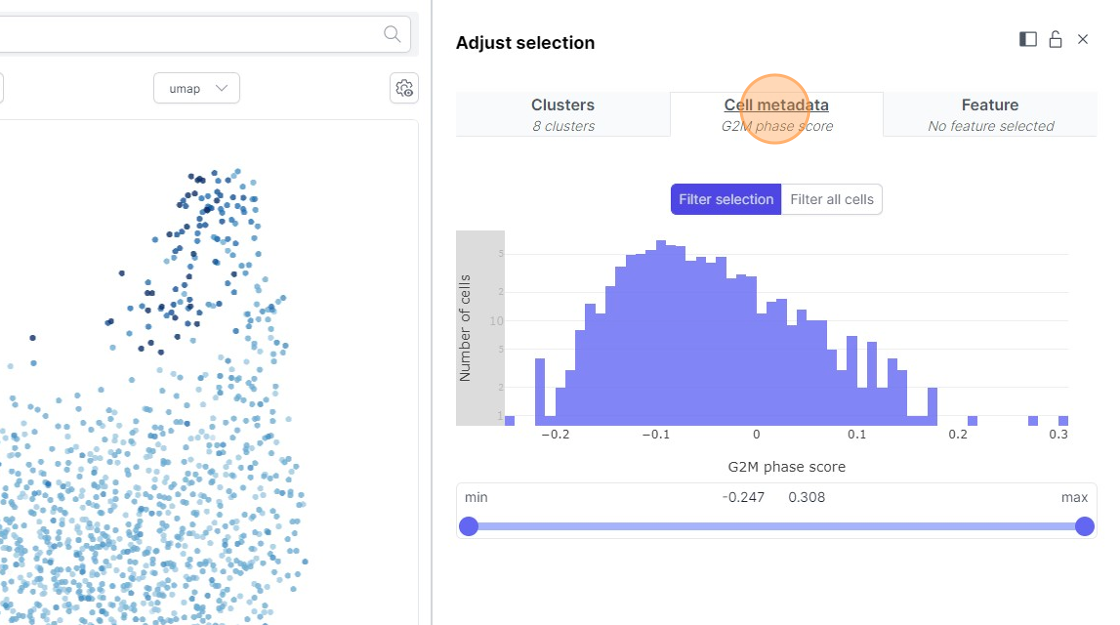
22\. Click here.
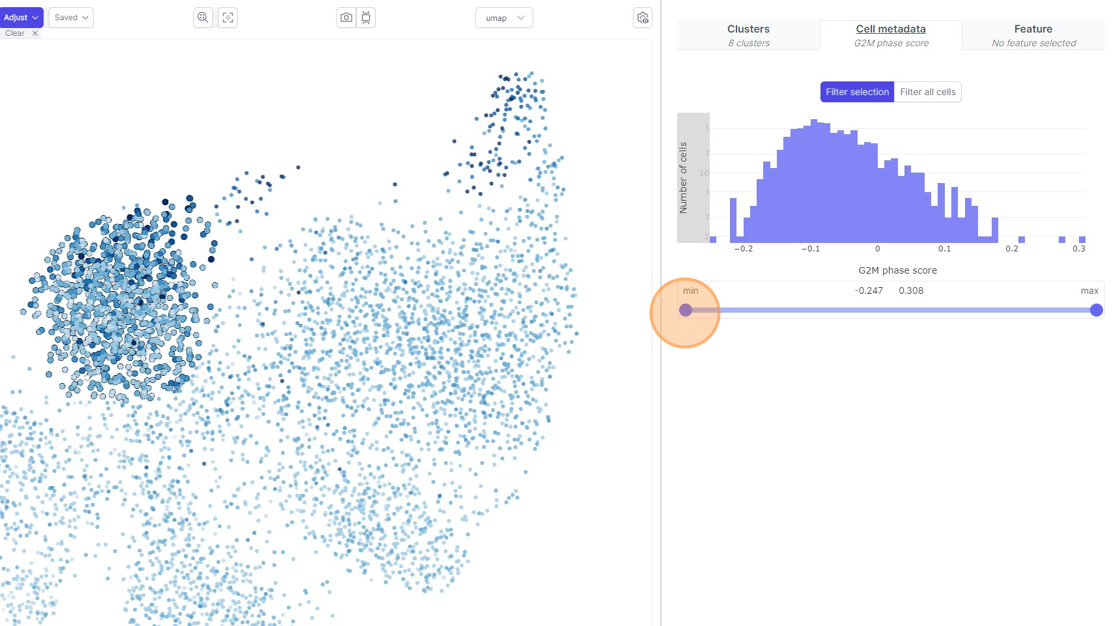
23\. Click here.
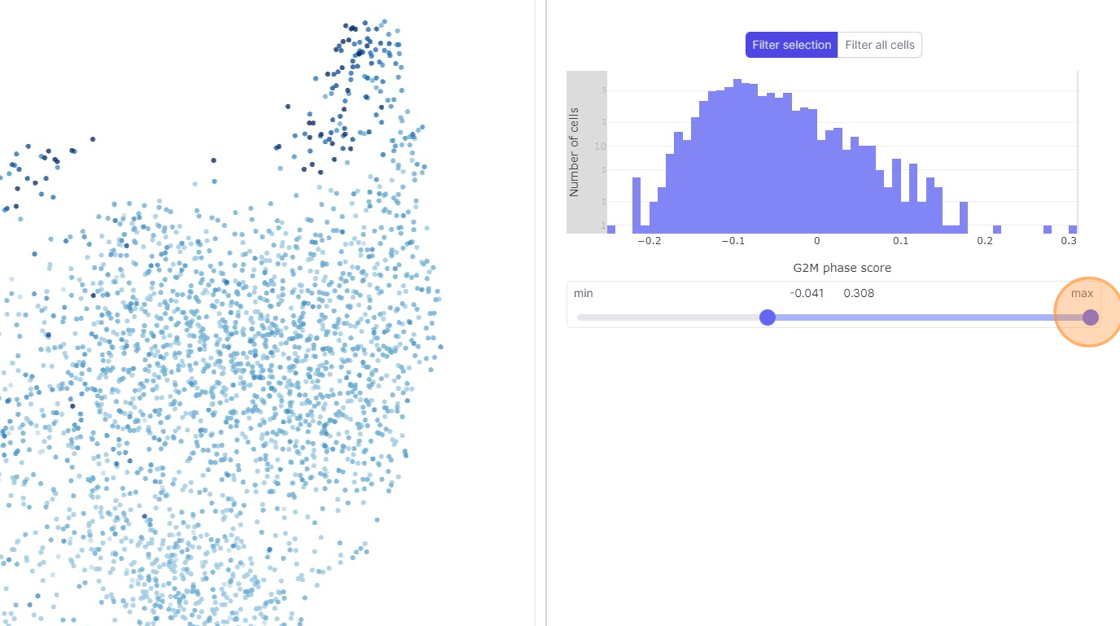
24\. Click here.
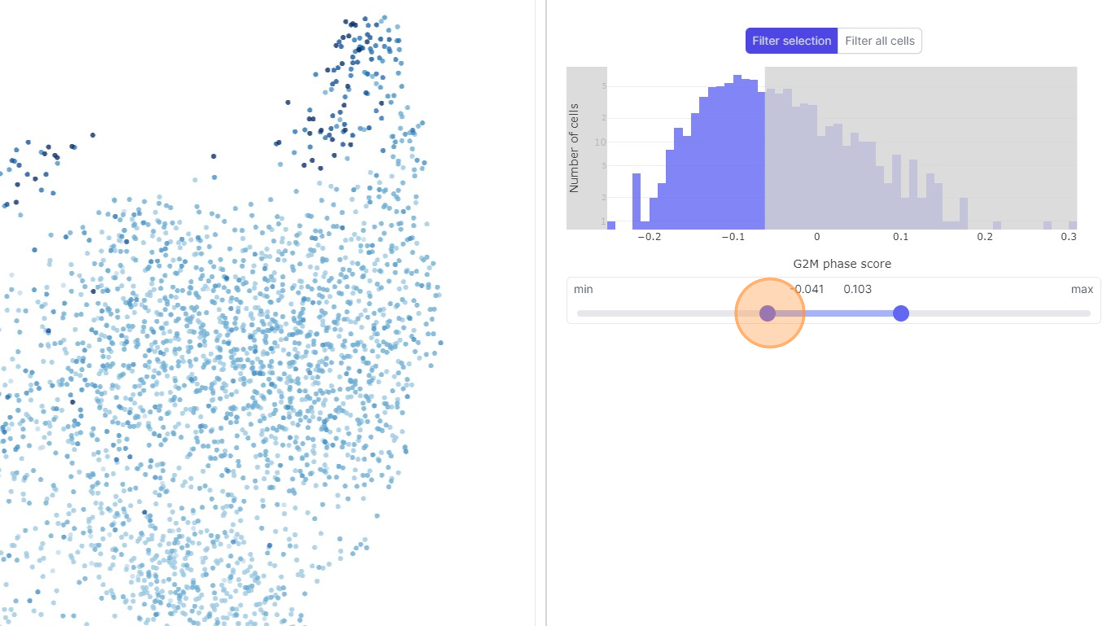
25\. Click here.
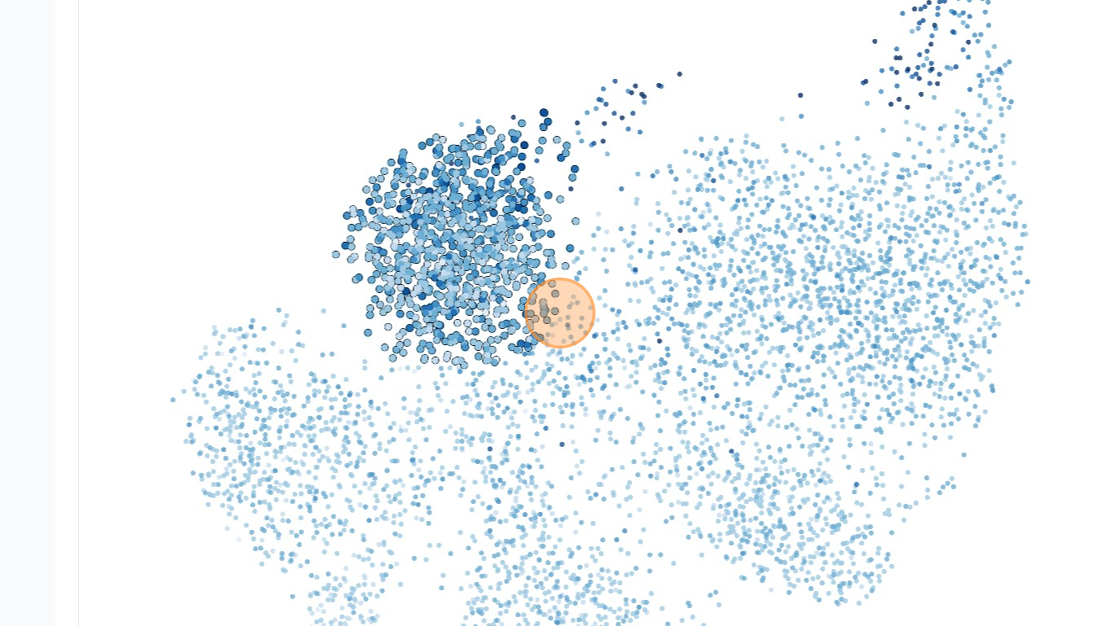
26\. Click "Adjust"
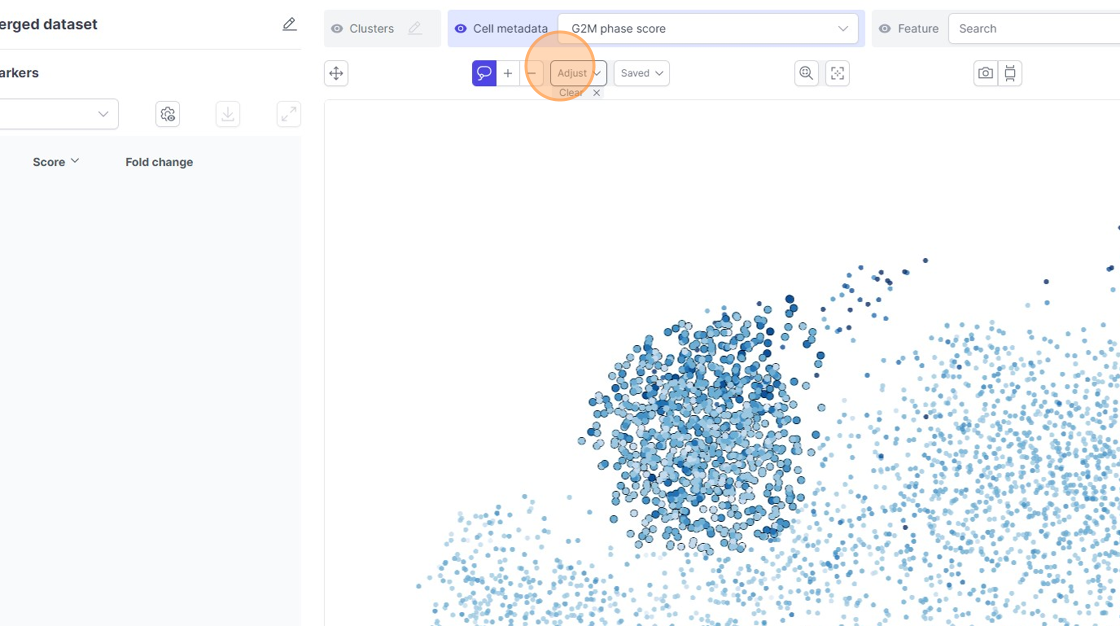
27\. Click "Filter all cells"
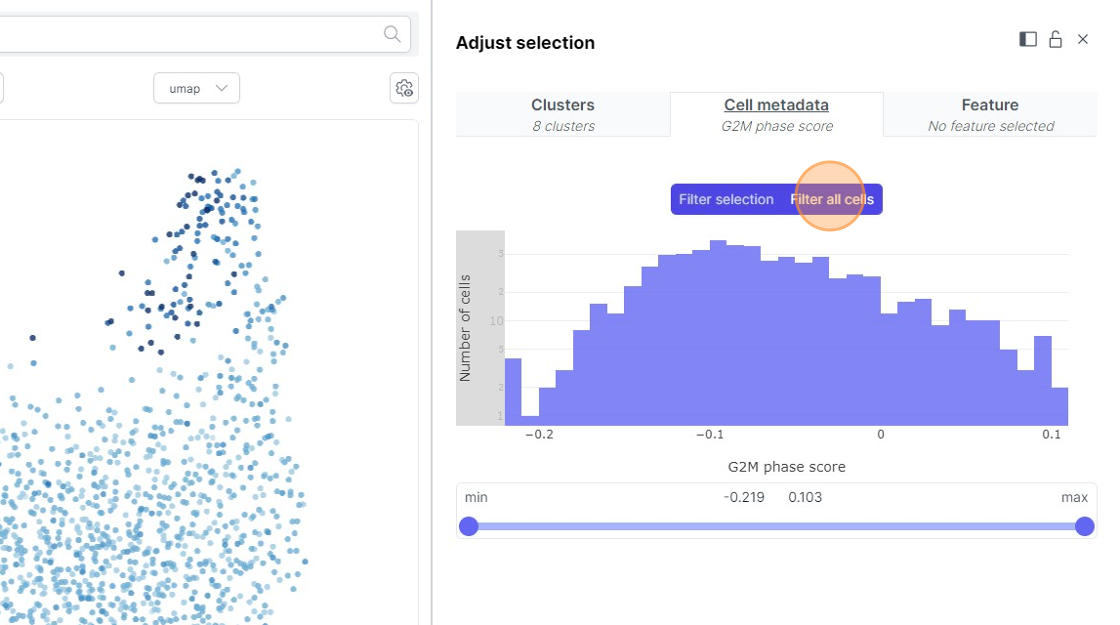
28\. Click "Filter selection"
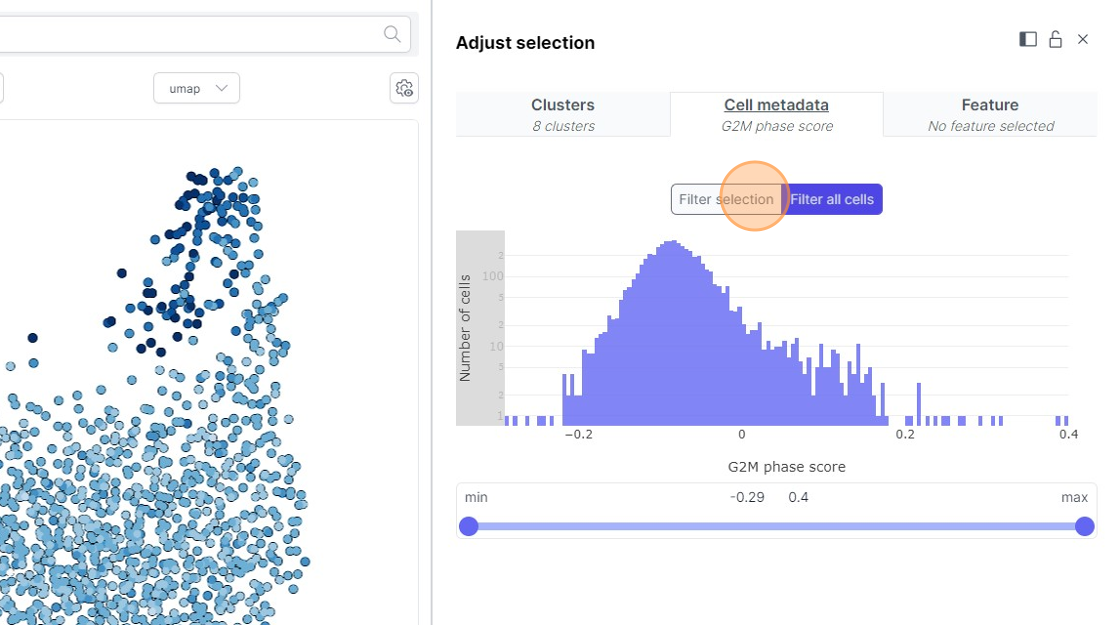
29\. Click here.
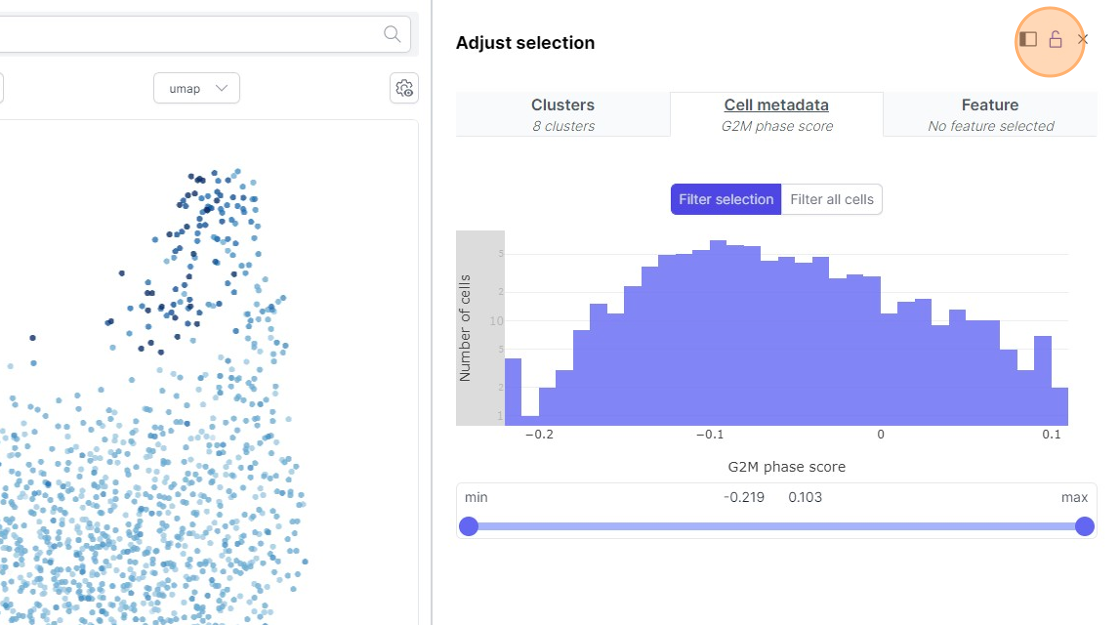
30\. Click this icon.
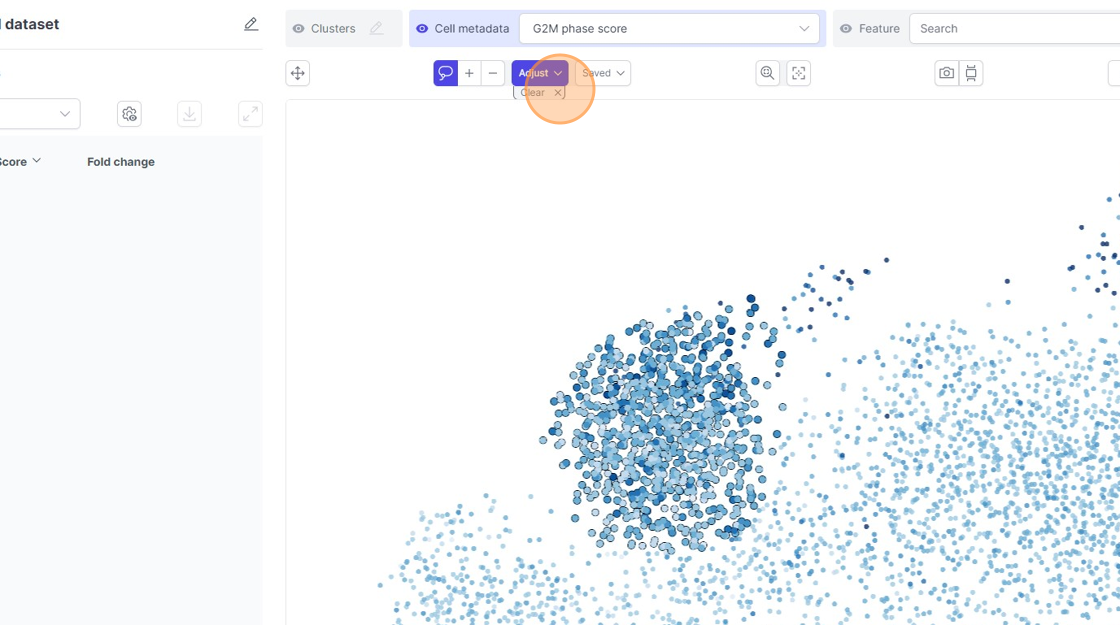
31\. Click "Saved"
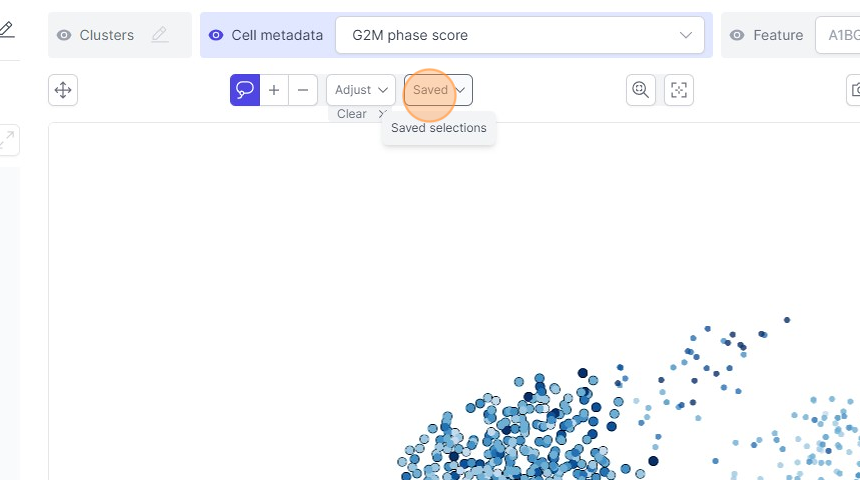
32\. Click this text field.
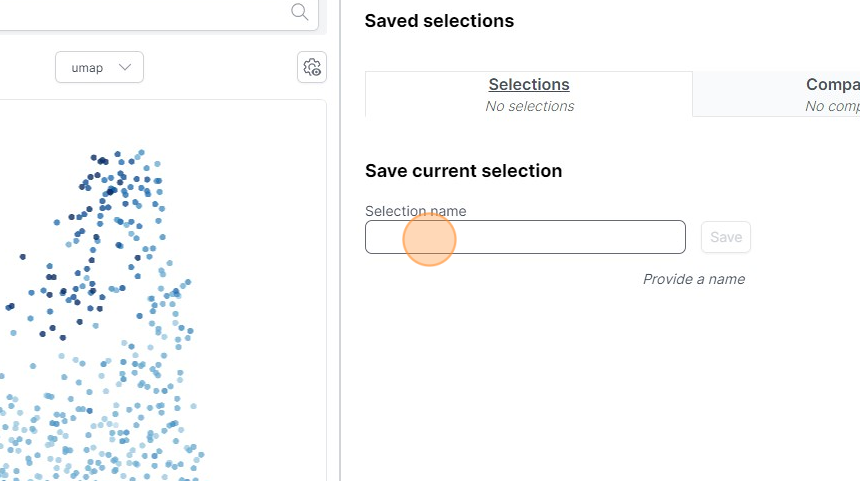
33\. Type "selection"
34\. Click "Save"
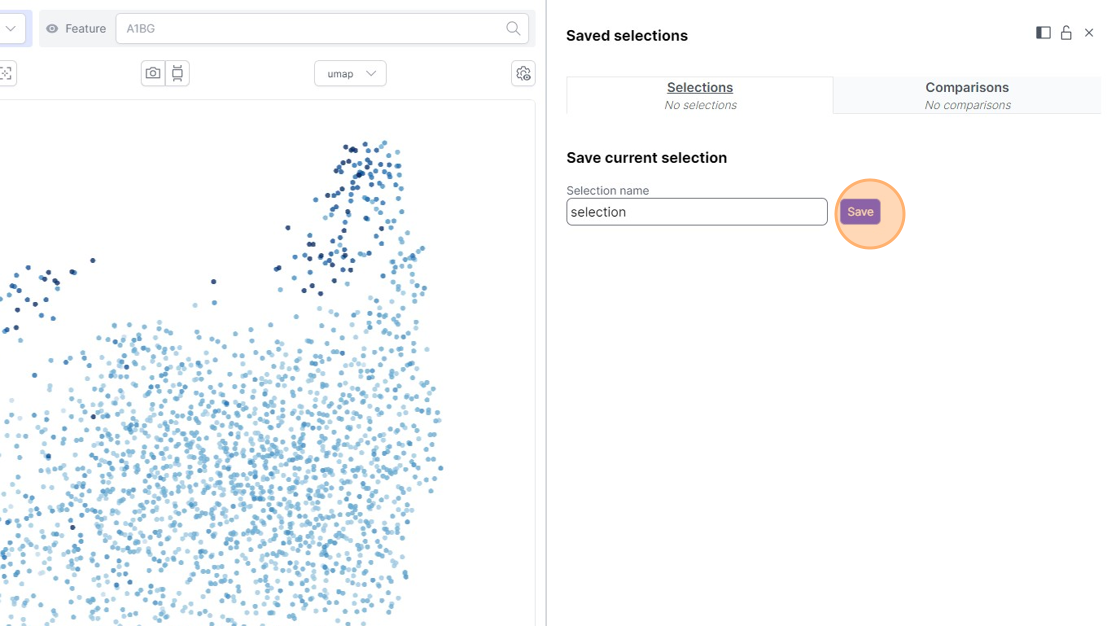
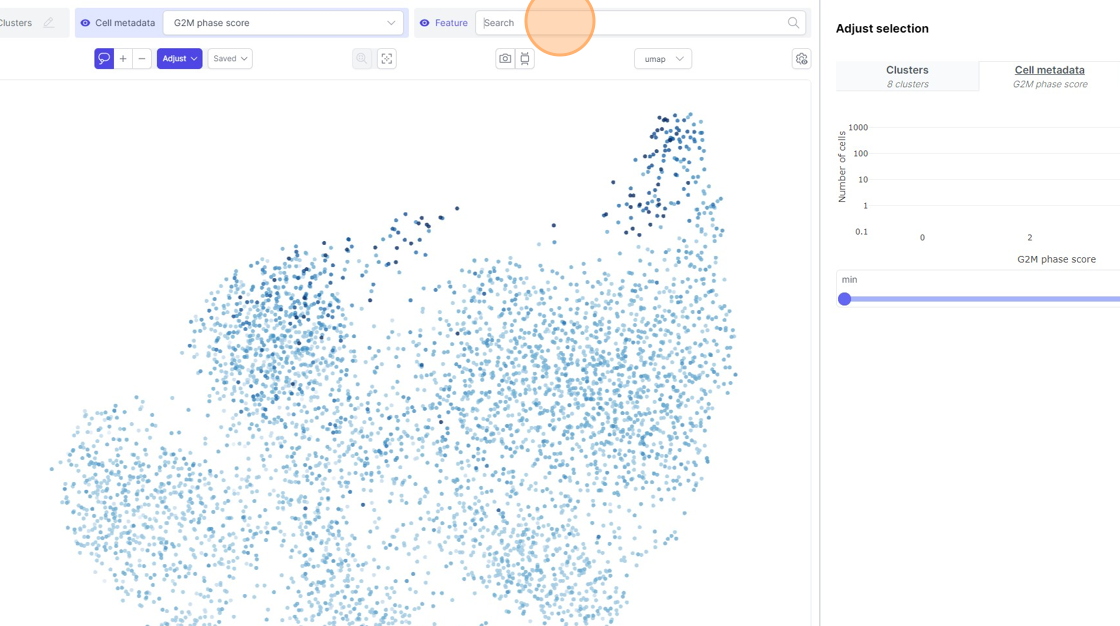
35\. Click the "Search" field.
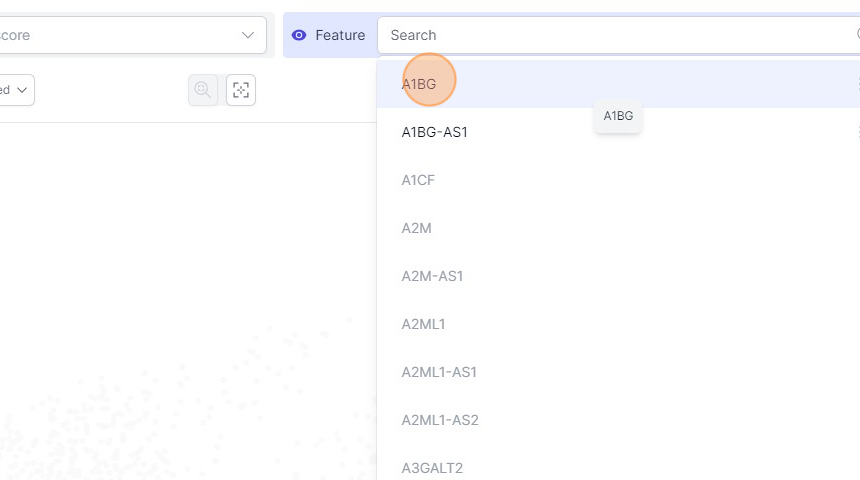
36\. Click "A1BG"
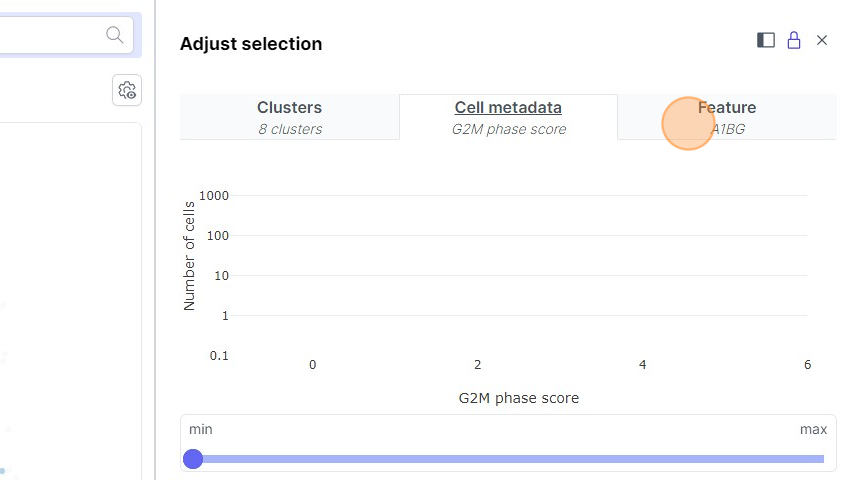
37\. Click here.
38\. Click here.
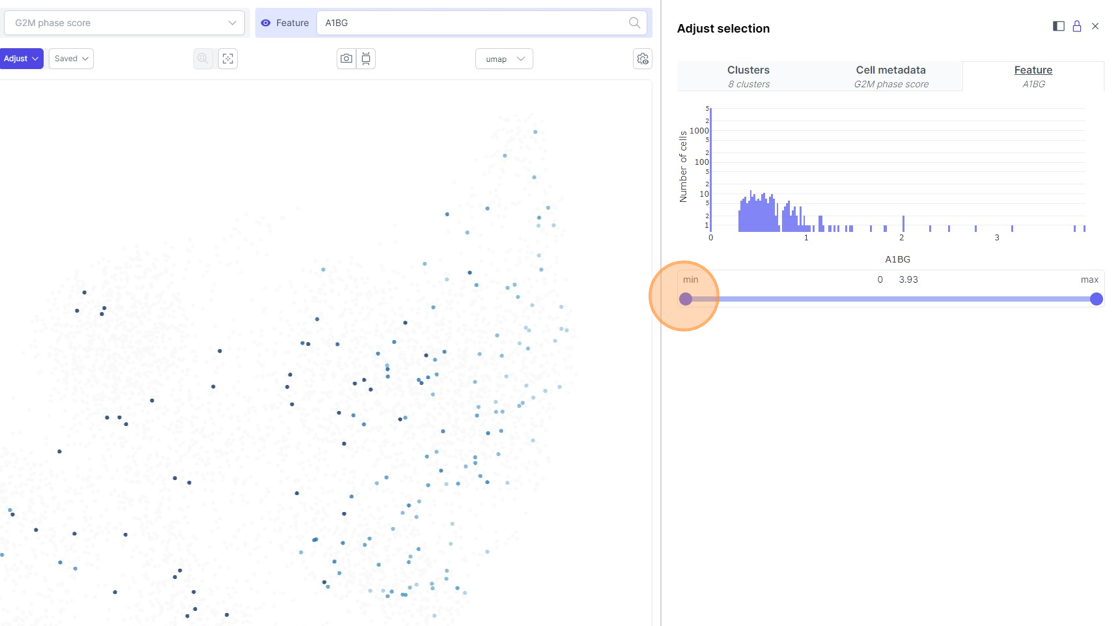
39\. Click here.
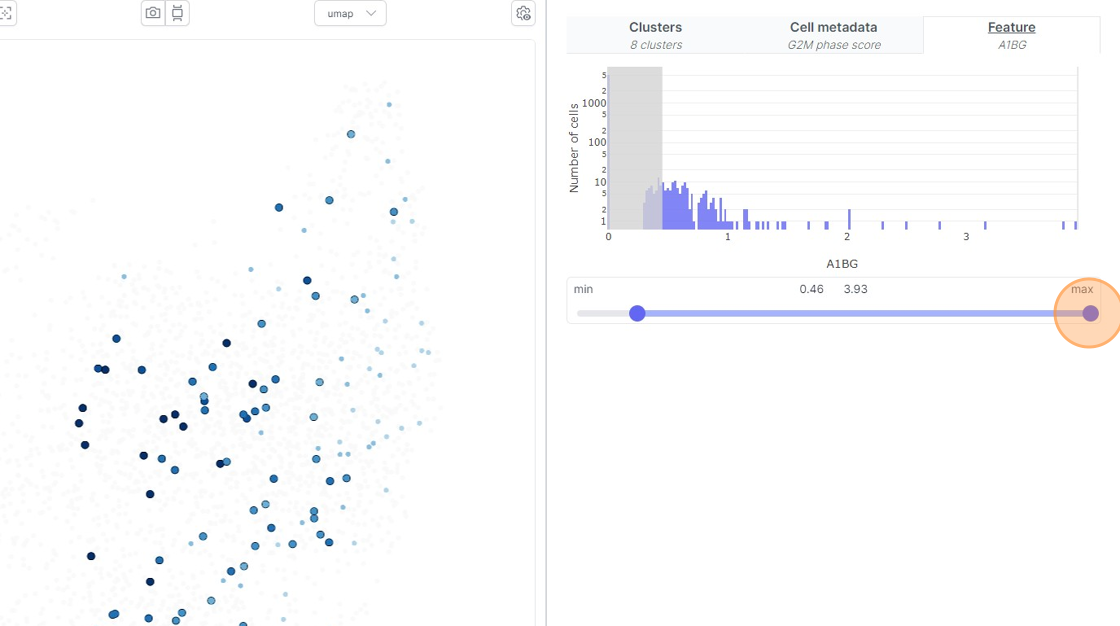
40\. Click here.
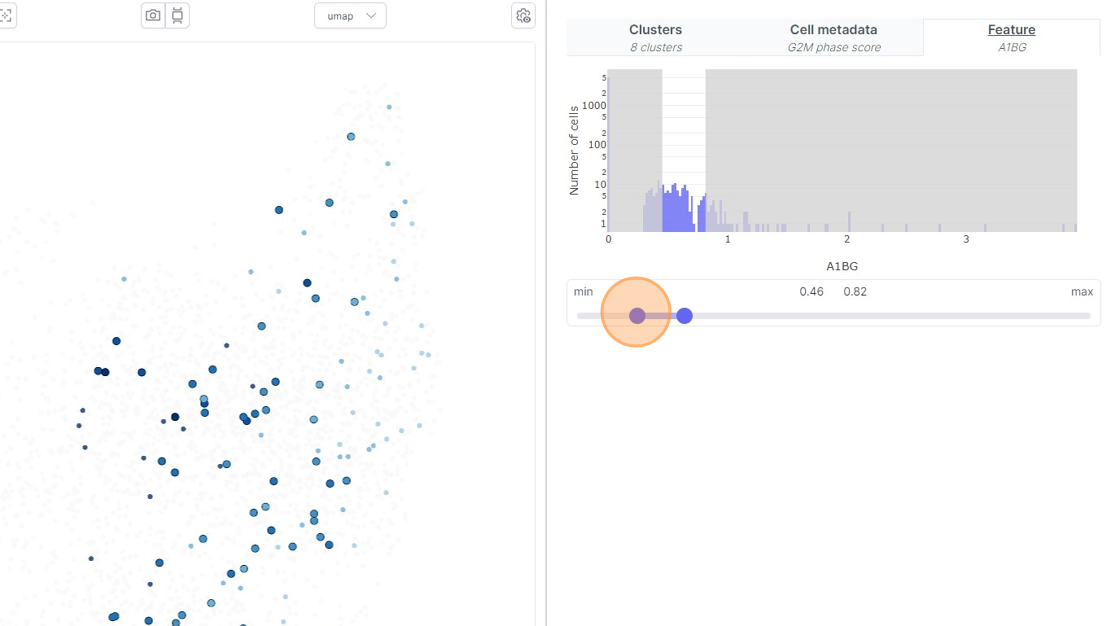
41\. Click "Confirm selection"